How to Scrape LinkedIn Sales Navigator in 2026 (Safe, Legal & at Scale)
Step-by-step guide to Sales Navigator scraping — compare Chrome extensions vs cloud tools, understand daily safe limits, and stay GDPR-compliant.
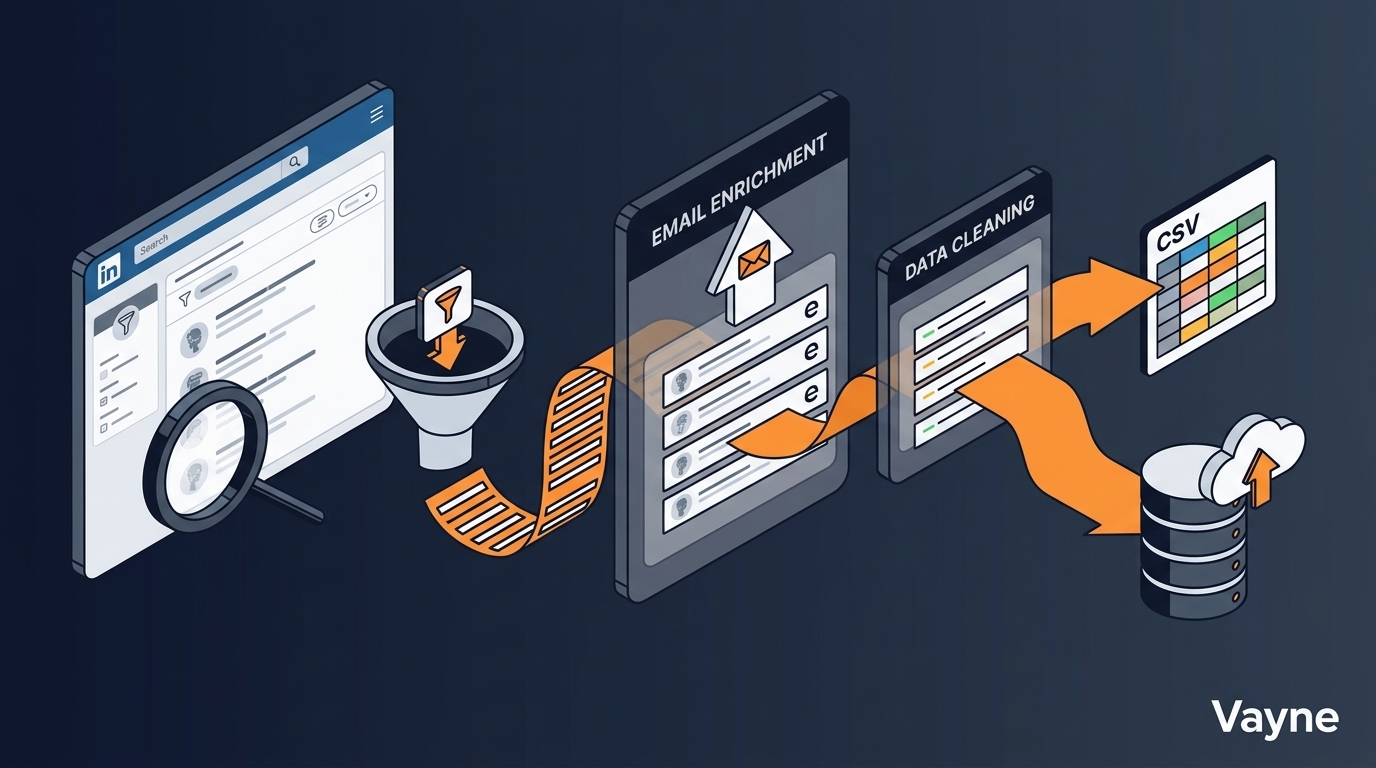
LinkedIn Sales Navigator holds more actionable B2B data than any other platform on the market—200 million+ professional profiles, real-time job change signals, decision-maker filters, and account-level intelligence that no purchased list can replicate. But if you've ever tried to turn a saved Sales Navigator search into a usable outreach list, you already know the problem: the platform was built for browsing, not bulk exporting. A Sales Navigator scraper closes that gap, transforming a static search result into a structured, enriched dataset your CRM can actually use. Here's everything your team needs to know about doing it safely, legally, and at scale in 2026.
What Is a Sales Navigator Scraper?
A Sales Navigator scraper is a tool—browser extension, script, or cloud service—that programmatically reads lead and account data from Sales Navigator search results and exports it in a structured format (CSV, JSON, or direct CRM push). Instead of copying and pasting 2,500 rows one by one, the scraper traverses paginated results, captures the fields you need (name, title, company, headcount, location, LinkedIn URL), and optionally enriches each record with verified email addresses and phone numbers.
Think of it as the bridge between LinkedIn's data layer and your sales stack.
Why Manual Export Falls Short
LinkedIn does offer a native export option, but it comes with hard constraints that make it impractical for most B2B teams:
2,500-lead cap per export. Run a search returning 8,000 prospects and you're splitting it manually into four batches.
No email enrichment. LinkedIn's CSV includes name, title, company, and LinkedIn URL—nothing you can actually send email to without a separate enrichment step.
No phone numbers. Ever.
CSV only. No direct Salesforce, HubSpot, or Apollo push. You're importing a flat file and cleaning it yourself.
No automation. Each export is a manual, point-in-time action. If you need fresh data weekly, you're repeating the process every week.
For an SDR running 20 targeted searches a month, the manual workflow alone can consume 6 to 10 hours of productive selling time.
3 Scraping Methods Compared
Chrome Extensions
Inject scripts into your browser session and scrape as your account navigates Sales Navigator. Safe daily limit: 60 to 80 profiles. Ban risk: high. Best for solo prospectors doing light outreach.
Python and GitHub Scripts
Open-source scrapers you self-host. High ban risk without rotating residential proxies. Requires 3 to 5 hours of setup plus recurring maintenance every time LinkedIn updates its front-end. Best for technical teams that need full control.
Cloud SaaS
API-first scrapers that run server-side. Daily volumes of 500 to 15,000 profiles. Low ban risk — scraping happens without your LinkedIn session. Built-in email enrichment. Zero maintenance. Best for sales teams and agencies who need reliable data at scale.
Method 1: The Manual Workflow (No Code)
For sales teams and growth operators who want results without touching an API, this workflow takes under 20 minutes from search to enriched CSV.
Step 1 — Build your Sales Navigator search
Apply your ICP filters — industry, headcount, seniority, geography, tenure. Verify the result count looks realistic before exporting. 200 to 500 is a solid batch size. Bloated searches waste enrichment credits on irrelevant profiles.
Step 2 — Copy the URL and create an order in Vayne
Paste the raw Sales Navigator URL directly into Vayne's dashboard. Set your lead limit and enable email enrichment. No reformatting required.
Step 3 — Review results before enriching
Vayne's dashboard shows real-time scraping progress. Once finished, do a first-pass review: discard profiles with mismatched titles, wrong company size, or off-ICP signals. This takes 5 to 10 minutes and costs zero credits.
Step 4 — Enrich only the promising leads
Run email and phone enrichment exclusively on your shortlisted profiles. This is the key credit-saving lever — you are enriching the 80 that fit, not the full 400-person list.
Step 5 — Push to your CRM
Download the CSV or route results directly to your CRM via Vayne's webhook or Zapier integration. Map fields once, reuse indefinitely.
Method 2: The Agentic Workflow (Vayne API + Claude + N8N)
This pipeline runs fully autonomously on a schedule. Zero manual intervention per cycle.
Node 1 — Schedule Trigger
Set to fire weekly or daily depending on pipeline volume.
Node 2 — HTTP Request: Create Scraping Order
POST to https://www.vayne.io/api/orders. Include the Sales Navigator URL, a limit, email set to true for enrichment, and your N8N webhook URL so Vayne calls back on completion.
Node 3 — Webhook Node: Wait for Completion
N8N listens passively. When Vayne finishes scraping, it calls your webhook with the order ID. No polling loops required.
Node 4 — HTTP Request: Export Results
POST to https://www.vayne.io/api/orders/{id}/export using the advanced format for fully enriched fields including email and phone.
Node 5 — AI Agent Node: Score Leads with Claude
Feed the lead rows to Claude with a scoring instruction: score each lead from 1 to 10 based on job title match, company headcount, and industry fit. Return only leads scoring 7 or above. Claude filters out the noise before it ever reaches a human.
Node 6 — CRM Node: Push Qualified Leads
Pipe Claude's output directly into HubSpot or Salesforce with deal stage set to New Lead. Fields map cleanly from Vayne's export format.
The full cycle from schedule trigger to CRM entry runs in under 15 minutes of compute time. By the time your team opens their CRM on Monday morning, the leads are already there — pre-filtered, pre-scored, and ready to work.
How Many Profiles Can You Safely Scrape Per Day?
Chrome extensions: stay under 80 profiles per day per LinkedIn account. Exceeding this triggers abuse detection.
Cloud SaaS tools: 500 to 15,000 profiles per day depending on your plan, with no session risk to your LinkedIn account.
New accounts: warm up for 1 to 2 weeks at lower volumes before scaling.
Large searches: distribute across multiple days and query segments rather than a single massive run.
Is Scraping Sales Navigator Legal?
The hiQ Labs v. LinkedIn Precedent
U.S. federal courts ruled between 2019 and 2022 that scraping publicly accessible LinkedIn data does not violate the Computer Fraud and Abuse Act. Scraping is a contractual matter with LinkedIn — not a criminal one.
GDPR and Business Data
Under GDPR, business contact information used for legitimate B2B prospecting falls under the legitimate interest legal basis. Maintain a suppression list, honor opt-outs, and document your legal basis.
FAQ
Does scraping Sales Navigator get your LinkedIn account banned?
Browser-based extensions that scrape through your personal LinkedIn session carry real ban risk at volume. Cloud-based scrapers running server-side without your account credentials do not put your LinkedIn account at risk.
Can I get emails from Sales Navigator directly?
No. LinkedIn withholds email addresses from all native exports. A scraper with email enrichment uses name, company, and domain to find and verify the associated business email.
How accurate is enriched Sales Navigator data?
Profile data is typically very accurate. Email enrichment from quality providers delivers 70 to 85 percent verified deliverability rates.
How often should I re-scrape a search?
Refresh a saved search every 30 to 60 days to catch new entrants and filter out people who have changed roles.
Vayne.io's free tier gives you 200 exports per month with no credit card required — test the full workflow against your real Sales Navigator searches before committing to anything.