Sales Navigator Scraper: How to Extract B2B Leads Safely and at Scale
A Sales Navigator scraper automates lead extraction from filtered searches — without manual CSV exports. Compare methods, avoid account bans, and start free with 200 profiles/month.
Introduction
Sales teams rely on LinkedIn Sales Navigator because it is the "source of truth" for B2B data. However, manually exporting leads is slow, error-prone, and impossible to scale.
That’s where a Sales Navigator scraper comes in.
But there is a catch. Scraping the wrong way leads to bloated lists, wasted enrichment credits, and account restrictions. As discussed in our recent breakdown with our Head of Growth, Aurélien, data tends to decay at a rate of ~3% per month. That means if you rely on static databases, 30% of your data is obsolete within a year.
In this guide, we’ll turn the transcript of our expert session into a step-by-step masterclass on how to scrape Sales Navigator safely, accurately, and at scale using Vayne.io.
What Is a Sales Navigator Scraper?
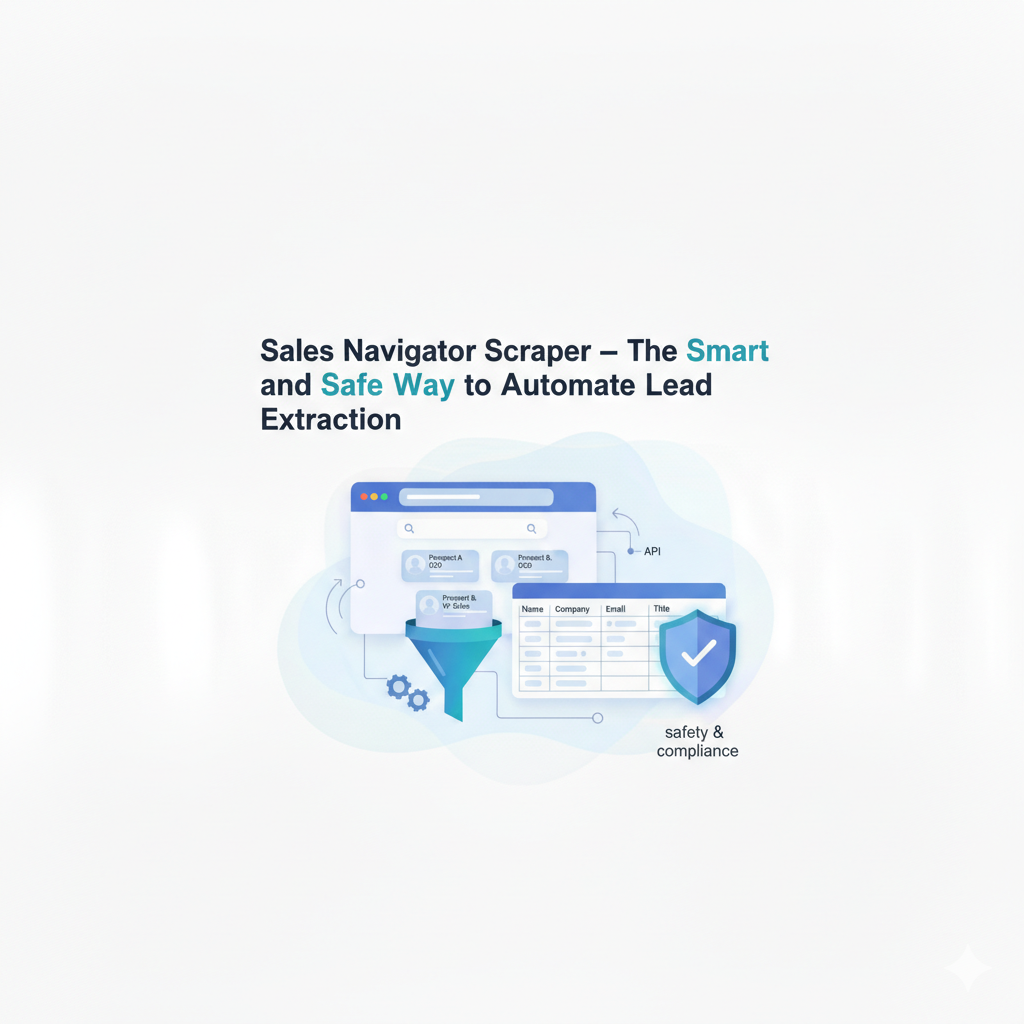
A Sales Navigator scraper is a tool that extracts profile data from LinkedIn searches and converts it into structured, actionable lists (CSV or CRM-ready).
Unlike buying a static database, a scraper allows you to go directly to the source. It captures:
Real-time data:Current job titles, company tenure, and location.
Context:Time in role, recent posts, and shared connections.
Hidden signals:Data points that aren't always visible on the public profile.
The goal isn't just "getting emails"—it's building a workflow where you define your Ideal Customer Profile (ICP) on LinkedIn, and the scraper handles the manual labor of data entry.
Before You Scrape: The "Start Simple" Strategy on Sales Navigator
One of the biggest mistakes users make is over-engineering their search immediately. They build a complex Boolean string, see 2,000 results, and hit "Scrape."
The Problem:You have no idea what is on page 50.
The Solution:
Start with broad, native filters (Function + Seniority).
Manually browse the results. Look at page 1, then jump to page 10, then page 50.
Analyze the irrelevance. Are you seeing "interns" mixed with "VPs"? Are you seeing consultants instead of full-time employees?
If you don't understand how LinkedIn interprets your query visually, scraping the data will only amplify the noise.
Sales Navigator Filters: Critical Distinctions
To get a clean scrape, you must understand the logic behind the filters.
1. Company Location vs. Geography
This is a frequent point of confusion.
Company Location:Where the company HQ is (e.g., A US Bank).
Geography:Where the personis (e.g., A branch manager in London).
The Trap:If you filter by "Company Location: US," you might scrape an employee based in London. Always use the Geography filter to target the human, not the entity.
2. The "Missing Data" Signal
If you look at the Company Headcount filter, you might see that the sum of the checkboxes (1-10, 11-50, etc.) does not equal the total search results.
Total Results: 254
Sum of Filters: 226
The Gap: 28 profiles.
Pro Tip:Those missing 28 profiles usually have incomplete data or are freelancers without a linked company page. These are low-quality leads. By selecting allthe specific headcount boxes, you automatically filter out these "ghost" profiles before you scrape.
Job Title Filters vs. Boolean Search - Technical Deep Dive
Should you trust LinkedIn's dropdowns or write your own Boolean strings?
Option A: LinkedIn Predefined Titles (The Safe Bet) When you select "Chief Marketing Officer" from the list, LinkedIn is restrictive. It gives you a cleaner list (~1,000 results) but might miss edge cases.
Option B: Boolean Search (The Power User Move) Writing ("VP" OR "Head of" OR "Chief") AND "Marketing" allows you to capture creative job titles. This often triples your results (~3,000 profiles) but introduces noise.
⚠️ Common Boolean Mistakes to Avoid: If you choose Boolean, you must keep your syntax clean.
Smart Quotes:If you copy-paste your Boolean string from Notion or Google Docs, they often use “curved quotes” instead of "straight quotes." Sales Navigator treats curved quotes as normal text, breaking your search.
Nested Brackets:Complex logic like ((A OR B) AND C) often confuses the search engine. Keep it flat.
Language Specifics:In some languages (like German), colons (:) are used in gender-neutral phrasing, which can break Boolean parsers.
Verdict: If you are enriching data directly (expensive), use Predefined Titles. If you are scraping to a spreadsheet to clean manually (cheap), use Boolean.
The "Keyword Search" Field: The Most Dangerous Trap
The "Keywords" bar at the top of Sales Navigator does not search just the job title. It searches the entire profile:
Past job titles
Education history
About section / Bio
Job descriptions from 10 years ago
Real-World Example: You search for "VP Marketing" in the keyword field. You find a profile for "Brian."
Reality:Brian is currently a "Head of Strategy."
Why he appeared:He was a "VP Marketing" 5 years ago, or he lists "VP Marketing" as a skill in his bio.
The Glitch:Some users have 10+ "Active" job roles (Advisory board, fractional roles, etc.). LinkedIn's keyword search cannot distinguish between his primaryjob and his side hustles.
Vayne.io solution:When Vayne scrapes this data, it can extract past job titles alongside the current one. This allows you to programmatically check if the keyword match is current or historical afterthe extraction.
Advanced Strategies for High-Intent Lists
Once you master the basics, use these advanced workflows to build "Money Lists."
1. The "Champions" List (Tracking Past Customers)
Upload a list of your happy customers (CSV) to Sales Navigator. Then, use the "Past Company" filter to find people who used to work for your customers but have moved to a new company.
Why it works: They already know your product. They are your internal champions at a new prospect account
2. The "Green Link" Strategy, scrape only new profiles in an existing saved searches
Don't scrape the same list every week.
Save your perfect search.
Check back weekly. Look for the small green text: "98 new results."
Click that link.
Use Vayne.io to scrape only those 98 people.
This creates a "Waterfall" system where you only pay to enrich fresh leads who just entered your market.
Sales Navigator scraper: Chrome extension vs. cloud tool — which is safer?
There are two fundamentally different architectures for Sales Navigator scraping. Choosing the wrong one at the wrong volume is the most common reason accounts get flagged.
Chrome extension scrapers
Tools like Wiza, Skrapp, and several legacy phantoms operate directly inside your browser, on your personal LinkedIn session. The extension reads the Sales Navigator DOM as you scroll — or simulates scrolling automatically.
What works: fast to set up, no API required, generally accurate for small batches.
What breaks at volume: LinkedIn's detection algorithms flag DOM manipulation. When a session triggers hundreds of profile views in an unusually short window, the account receives a temporary restriction or outright ban. At 50–100 leads/day this risk is manageable. At 500+/day it is not.
Cloud-based scrapers
Cloud tools execute the scraping on dedicated infrastructure using a separate LinkedIn session — not your personal browser. The tool receives your Sales Navigator search URL, runs the extraction server-side, and delivers structured output via API or export.
What works: high-volume extraction (up to 15,000 profiles/day with Vayne.io), safe residential IP rotation, no risk to your personal LinkedIn account, and no Chrome dependency.
What breaks: slightly more setup — you need to authenticate your LinkedIn account with the tool once. Not suitable for single one-off exports where setup time exceeds the benefit.
Which to choose
Occasional exports (< 50 leads/week) → Chrome extension (low risk)
Regular prospecting (50–500 leads/day) → Cloud tool
High-volume pipeline (500+ leads/day) → Cloud tool only
Team with shared Sales Navigator seat → Cloud tool (extensions tie to one browser)
Need email enrichment in the same workflow → Cloud tool (extensions rarely enrich)
For anything beyond occasional use, Vayne.io is the cloud-based option with native Sales Navigator support, built-in enrichment, and an API that connects directly to your CRM or automation stack.
How to scrape Sales Navigator in 3 steps (no code required)
This workflow uses Vayne.io's free tier. No code, no Chrome extension, no LinkedIn account risk.
Step 1 — Build your Sales Navigator search
Open Sales Navigator and filter by your ideal customer profile: industry, company size, seniority, geography, or any combination. You can use a saved search if you already have one. Copy the search URL from your browser — that's all you need.
Step 2 — Run the scrape in Vayne
Paste the Sales Navigator search URL into Vayne's scraper. Set your target number of profiles (up to 200 on the free tier). Click Run. Vayne extracts each profile — name, title, company, LinkedIn URL, company size, location — and runs email enrichment automatically in the background.
Step 3 — Export to your CRM or outreach tool
Download a clean CSV or use the Vayne API to push the enriched data directly to HubSpot, Salesforce, Apollo, Lemlist, or any webhook-compatible tool. No manual cleanup needed — fields are already mapped.
Total time: under 5 minutes for the first run.
Automating Lead Extraction with Vayne.io
Execution is where most sales teams fail. You have the search, but how do you get the data out safely?
Vayne.io is designed to solve the "Black Box" problems of Sales Navigator. Don't take our words for it and watch Nick Saraev show you how he uses it to build his B2B lead generations workflows :
Safety First:Vayne operates with cloud-based security to mimic human behavior, keeping your LinkedIn account safe from restriction flags.
Clean the "Brian" Problem:Vayne extracts granular data—including past rolesand active durations. This lets you filter out people who have "VP of Marketing" listed as a side gig rather than their main job.
Automation via API:You can connect Vayne to tools like Make (formerly Integromat)or n8n.
Workflow:Detect "New Job" → Scrape with Vayne → Enrich Email → Push to CRM.
This turns lead generation from a manual task into a background machine that runs while you sleep.
Conclusion
Scraping Sales Navigator isn't just about volume; it's about precision.
By moving away from the "Keyword" trap, understanding the difference between "Geography" and "Location," and utilizing the "Green Link" incremental scrape, you can build a sustainable, high-quality pipeline.
Ready to build your first automated list? Start your free trial with Vayne.io today and stop wasting credits on outdated data.
Frequently Asked Questions
What is a Sales Navigator scraper?
A Sales Navigator scraper is a tool that automatically extracts profile and company data from LinkedIn Sales Navigator search results — eliminating the need to manually export or copy-paste leads. The output is a structured dataset containing fields like name, job title, company, company size, location, and verified business email.
Is scraping Sales Navigator allowed?
Scraping LinkedIn data violates LinkedIn's Terms of Service but is not illegal — the US Ninth Circuit Court of Appeals ruled in hiQ Labs v. LinkedIn that scraping publicly accessible data cannot be blocked under the CFAA. The risk is account restriction or suspension, not legal prosecution. Cloud-based tools like Vayne.io mitigate this risk by using dedicated infrastructure rather than your personal browser session.
How many leads can I scrape from Sales Navigator per day?
With a cloud-based tool like Vayne.io, you can safely extract up to 15,000 profiles per day. For newly connected accounts, start at 100–200 profiles/day and scale up gradually over two to three weeks. Chrome extension-based tools should be kept below 100/day to reduce detection risk.
What is the best Sales Navigator scraper in 2026?
For most B2B teams, Vayne.io is the best Sales Navigator scraper — it combines native Sales Navigator support, cloud-based infrastructure, built-in email enrichment across 15+ providers, and an API for direct CRM integration. Evaboot is a focused alternative for pure Sales Navigator exports without enrichment. PhantomBuster offers more workflow flexibility but relies on a browser extension architecture, which increases account risk at volume.
Do I need a Sales Navigator subscription to use a scraper?
Yes. Sales Navigator scrapers require an active Sales Navigator session. A standard LinkedIn account is capped at 1,000 search results and fewer targeting filters. For serious outbound prospecting, Sales Navigator Core is the minimum recommended pairing.
Can I scrape Sales Navigator without a Chrome extension?
Yes — cloud-based tools like Vayne.io do not require a Chrome extension. You authenticate your LinkedIn session once, and all extraction runs server-side. This removes the DOM manipulation patterns that trigger LinkedIn's detection algorithms.
How do I get emails from Sales Navigator leads?
Sales Navigator does not expose email addresses natively. Vayne.io includes waterfall enrichment across 15+ email providers as part of every scrape run, so you get verified business emails without a second tool. Enrichment accuracy for well-defined ICP criteria typically runs 60–75%.